
By Jackson Godwin. Cybersecurity Analyst & Penetration
One Password Could Have Opened Every Door
After confirming that the email was fraudulent, I deleted it immediately.
Then I thought about what could have happened if I had entered my password.
The attackers wouldn’t just have gained access to one account.
Depending on how my Microsoft account was connected, they might have attempted to access:
- My Outlook email.
- OneDrive files.
- Microsoft Teams conversations.
- SharePoint documents.
- Microsoft 365 applications.
- Other services linked to the same credentials.
One stolen password could have become the key to a large part of my digital life.
The Biggest Warning Signs I Almost Missed
Looking back, several clues exposed the phishing attempt.
Here are the most important lessons I learned.
🚩 The Email Created Unnecessary Urgency
The message claimed my password would expire immediately.
It warned that my account might be suspended.
Urgency is one of the oldest social engineering techniques.
When people panic, they’re less likely to verify what they’re seeing.
Whenever an email pressures you to act immediately, pause before clicking anything.
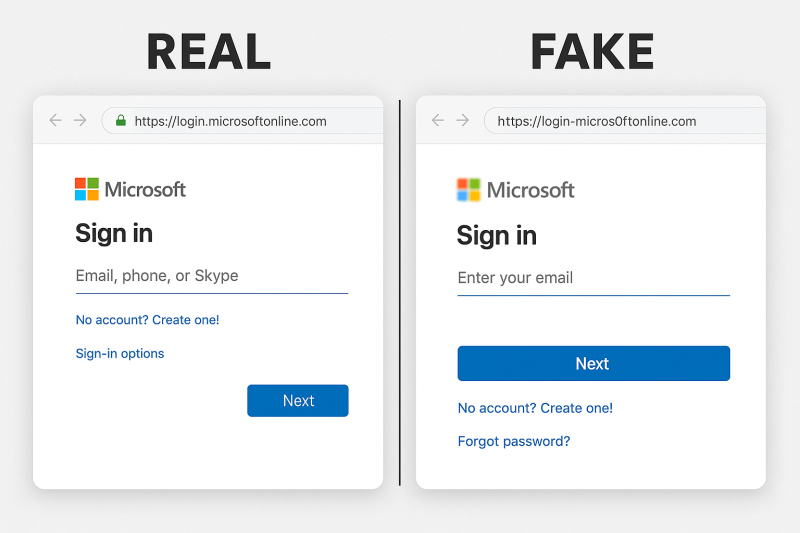
🚩 The Website Address Wasn’t Microsoft’s
The login page looked perfect.
The web address didn’t.
That small difference was the biggest clue.
Always check the address bar before entering your username or password.
A familiar logo doesn’t guarantee you’re on the correct website.
🚩 The Sender’s Email Was Different
The display name looked like Microsoft.
The actual email address wasn’t.
Cybercriminals often rely on people reading only the display name instead of the complete sender address.
Take a few extra seconds to inspect who actually sent the email.
🚩 I Was Asked to Sign In Through an Email Link
While legitimate organisations may occasionally send account-related emails, it’s generally safer not to sign in by clicking links inside unexpected messages.
Instead:
- Open your browser.
- Type the official website address yourself.
- Sign in normally.
That simple habit removes many phishing opportunities.
🚩 Everything Looked Too Perfect
Ironically, the professionalism of the email almost made me trust it.
The branding.
The layout.
The language.
Everything looked authentic.
Modern phishing attacks often copy legitimate websites with remarkable accuracy.
That’s why visual appearance alone should never be your only test.
How to Protect Yourself From Microsoft Phishing Scams
The experience taught me several habits that I still follow today.
Type the Website Address Yourself
Instead of clicking login links inside emails:
- Open a new browser window.
- Type the official Microsoft website address manually.
- Sign in there.
If there really is an account problem, you’ll usually see it after signing in through the genuine site.
Check the Browser Address Bar
Before entering your password, ask yourself:
Is this really Microsoft’s official website?
A quick glance at the address bar can stop many phishing attacks.
Enable Multi-Factor Authentication (MFA)
Even if someone somehow learns your password, an additional authentication factor can make it much harder for them to access your account.
While no security measure is perfect, MFA significantly improves account security for most users.
Use Strong, Unique Passwords
Avoid reusing the same password across multiple websites.
If one account is compromised, unique passwords reduce the risk of attackers accessing your other accounts.
A reputable password manager can also help you generate and store strong passwords securely.
Report Suspicious Emails
If you receive a phishing email:
- Delete it.
- Report it using your email provider’s phishing reporting feature if available.
- Inform your organisation’s IT or security team if it targets your workplace.
Reporting suspicious messages can help protect other users.
Frequently Asked Questions
Can phishing websites really look identical to Microsoft?
Yes.
Attackers often copy the appearance of legitimate websites very closely.
That’s why checking the web address is more reliable than judging a page by its appearance alone.
What should I do if I entered my Microsoft password on a fake website?
If you believe you’ve entered your credentials into a phishing page:
- Change your password immediately using the official Microsoft website.
- Review your recent account activity.
- Enable or confirm multi-factor authentication if available.
- Follow Microsoft’s security guidance for securing your account.
Acting quickly can reduce the risk of unauthorised access.
Are Microsoft users the only targets?
No.
Cybercriminals also impersonate many other organisations, including banks, delivery companies, cloud providers and social media platforms.
The same verification habits apply regardless of the brand being impersonated.
How can I tell if an email is genuine?
Look at several factors together:
- The sender’s email address.
- The website link.
- Whether the message creates unusual urgency.
- Whether you’re being asked to sign in unexpectedly.
If you’re unsure, contact the organisation through its official website rather than using links or phone numbers provided in the email.
Final Thoughts
The fake Microsoft login page didn’t need advanced hacking tools.
It simply relied on one mistake.
Typing my password into the wrong website.
Fortunately, one habit protected me.
I checked the address bar before signing in.
Today, every time I receive an email asking me to log into an account, I follow one simple rule:
Don’t trust the email. Trust the official website.
A few extra seconds spent verifying where you’re signing in can protect your emails, your documents, your work and your digital identity.
Sometimes the strongest cybersecurity defence isn’t complicated technology.
It’s taking a moment to verify before you type your password.
About the Author
Jackson Godwin is a Cybersecurity Consultant specialising in Vulnerability Assessment and Penetration Testing (VAPT), Governance, Risk and Compliance (GRC), ISO/IEC 27001, PCI DSS, Cloud Security, AI Security and Digital Risk Management.
With years of experience helping organisations identify vulnerabilities, strengthen security controls and improve cyber resilience, Jackson is passionate about making cybersecurity practical, easy to understand and accessible to everyone.
Through JacksonTechnology.com.ng, he publishes cybersecurity awareness stories, ethical hacking tutorials, compliance guides, cloud security insights, AI security resources and practical online safety tips to help individuals and businesses stay protected against evolving cyber threats.
His mission is to educate, empower and inspire safer digital habits—one cybersecurity story at a time.