



By Jackson Godwin. Cybersecurity Analyst & Penetration Tester
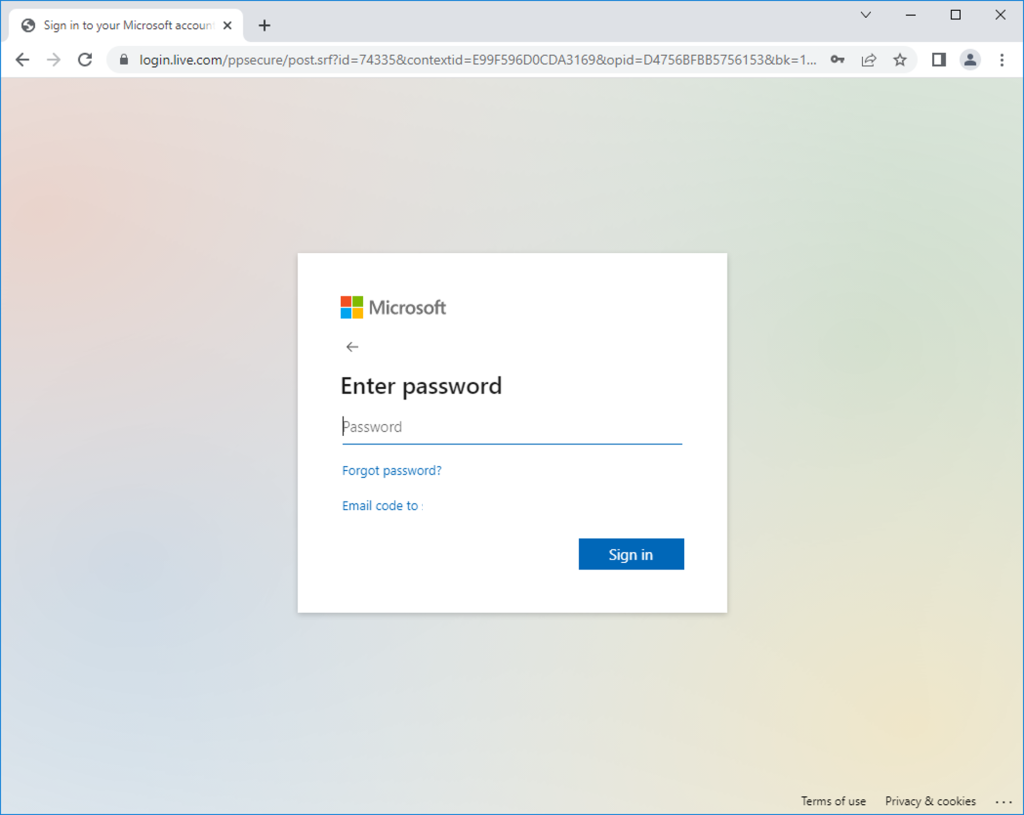
The Fake Microsoft Office Login Page
Disclaimer: This story is fictional but inspired by real Microsoft 365 phishing campaigns reported around the world. It is written to educate readers about credential theft, phishing websites and safe online authentication.
It Looked Like an Ordinary Work Email
It was just after 9:00 a.m.
I had barely finished my first cup of coffee when a new email appeared in my inbox.
The subject line immediately caught my attention.
“Action Required: Your Microsoft 365 Password Will Expire Today.”
As someone who uses Microsoft services for work, the message didn’t seem unusual.
Companies regularly remind employees to update their passwords.
Without thinking too much, I opened the email.
Everything Looked Official
The email was professionally designed.
It included:
- The Microsoft logo.
- Blue corporate branding.
- Security icons.
- A message explaining that my password would expire within 24 hours.
Near the bottom of the email was a large blue button.
“Keep My Account Active”
Nothing looked suspicious.
There were no spelling mistakes.
No strange formatting.
It looked exactly like the kind of email Microsoft might send.
I Clicked the Button
The button opened a sign-in page.
It looked identical to the Microsoft login screen I had used hundreds of times before.
The familiar Microsoft logo appeared at the top.
The background looked the same.
Even the fonts matched what I expected.
If someone had shown me a screenshot, I would have believed it was genuine.
I Entered My Email Address
The page asked for my email.
That seemed completely normal.
I typed it in.
The page then redirected me to the password screen.
Everything continued to look authentic.
There were no obvious warning signs.
Something Made Me Pause
As I moved my cursor toward the password field, I noticed something strange.
The browser wasn’t displaying the familiar Microsoft web address.
Instead, the address bar contained a long website name that included extra words and random characters.
At first glance, it looked similar to Microsoft’s domain.
But it wasn’t exactly the same.
That small difference immediately caught my attention.
I Looked More Carefully
Instead of entering my password, I read the web address slowly.
The criminals had cleverly included the word “Microsoft” inside the domain name.
Anyone reading it quickly might assume it belonged to Microsoft.
But it wasn’t an official Microsoft website.
It was a fake login page designed to steal usernames and passwords.
I Closed the Browser Immediately
Rather than signing in, I closed the page.
Then I opened a new browser window and manually typed Microsoft’s official website address.
After signing in normally, I checked my account.
There were no password expiry warnings.
No security alerts.
No account problems.
The email had been completely fake.
The Password Was Never the Real Target
The attackers didn’t care whether my password had expired.
They wanted me to type it into their website instead of Microsoft’s.
If I had done that, they could have attempted to use my credentials to access my email, cloud storage or other connected services.
One convincing email.
One realistic login page.
One careless moment.
That was all the criminals needed.
(Continue in Part 2, where I’ll explain how Microsoft phishing pages are designed to fool even experienced users, reveal the warning signs I almost ignored, and show how one small detail exposed the scam.)